waldur-site-agent
Quickstart
The fastest path from a fresh install to a running, verified agent. This page deliberately skips
options and edge cases — it links out to the full Configuration Reference and
Deployment Guide for everything beyond a first working setup. Written around the
SLURM backend, since it’s the most common first deployment; other backends follow the same shape
with a different backend_type and backend_settings block (see your plugin’s README under
plugins/).
Budget about 15-20 minutes if the offering side is already set up in Waldur.
1. Create the offering in Waldur
-
Go to the
Service Providersection of your organization, open offering creation, pick a name and category, and selectWaldur site agentfrom the type drop-down.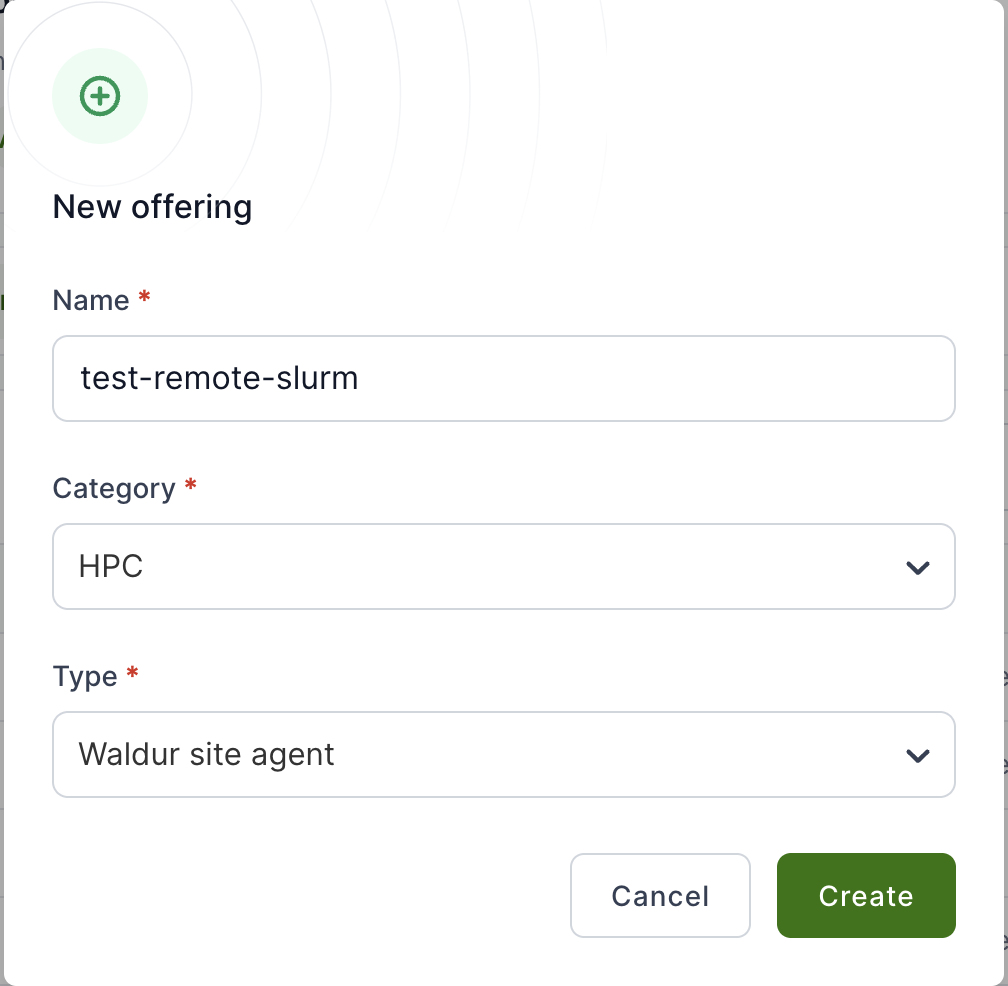
-
On the offering’s
Edittab, openAccounting→Accounting plans, add a plan.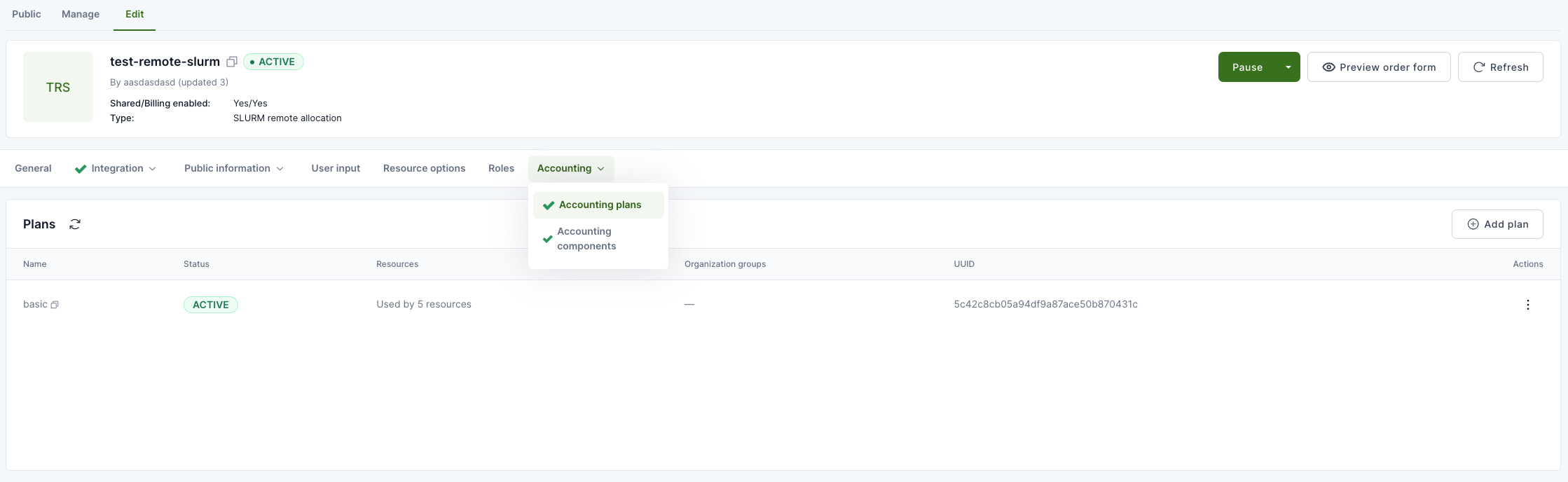
-
Still on
Edit, openIntegration→User management, setService provider can create offering usertoYes.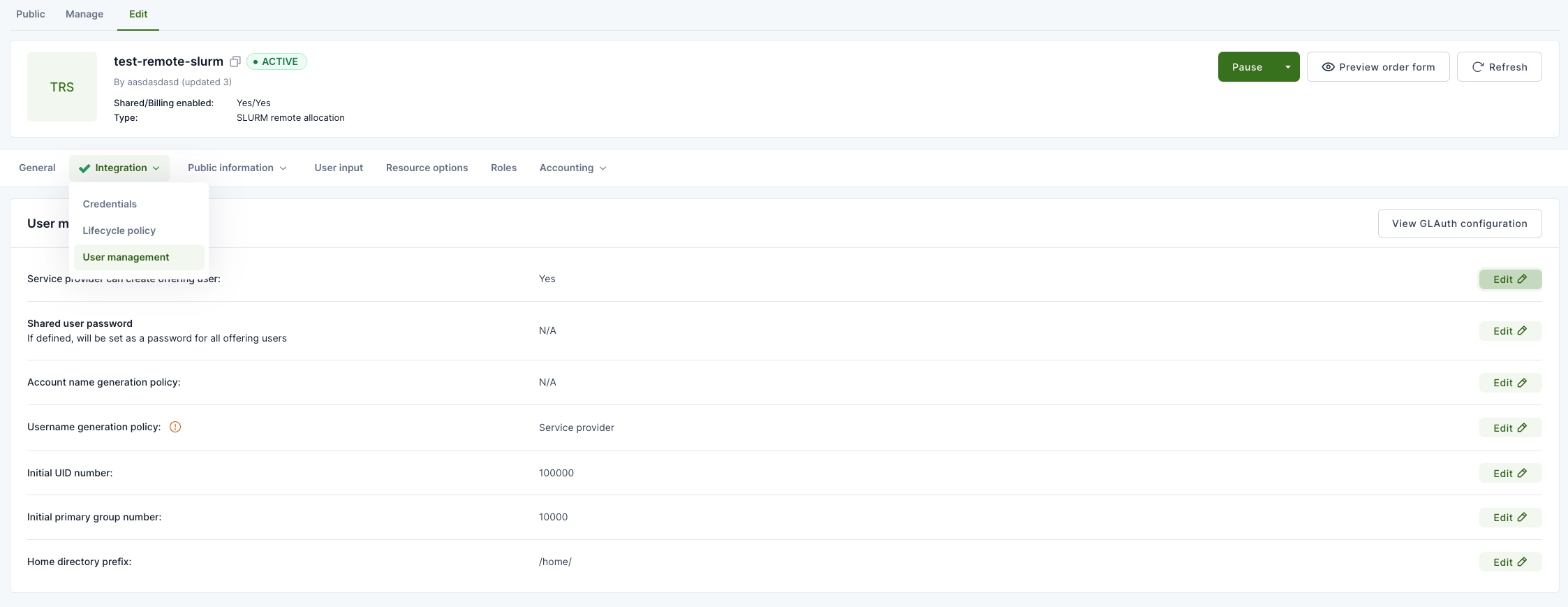
- Activate the offering with the green
Activatebutton. -
Copy the offering UUID from
Integration→Credentials— you’ll need it below.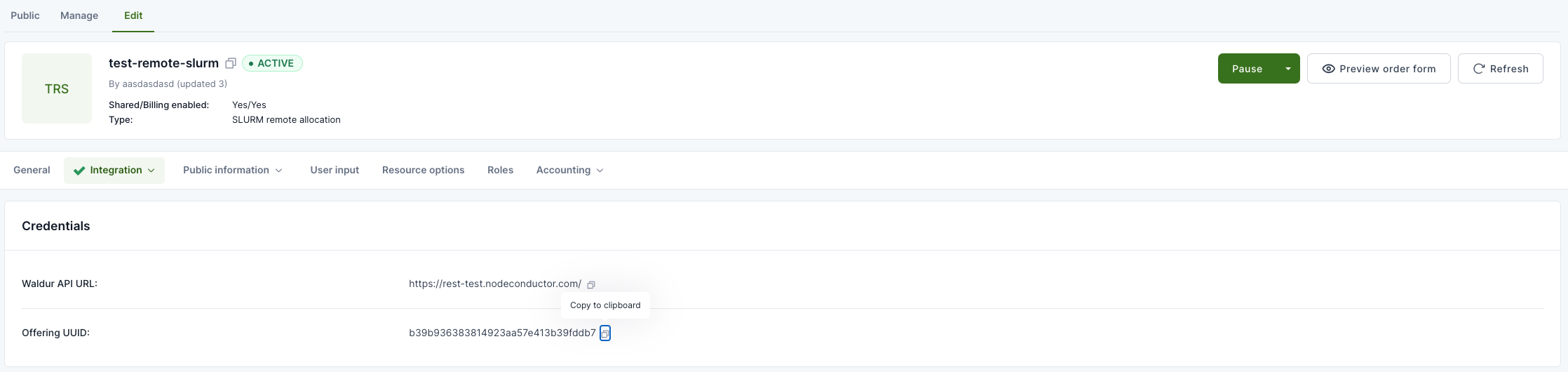
-
Create a dedicated agent account — a Waldur login that exists only for the agent to authenticate with, not a real person’s. As a staff user, go to the
Supportworkspace →User management→Users→Create user, and work through the wizard: set ausernameandemail, and set (or generate) aPasswordon the Account step — leave it blank and the account ends up passwordless. LeaveStaffandSupportunchecked; offering-level access, granted next, is all this account needs. -
Grant that account the OFFERING.MANAGER role on this specific offering — not a customer-wide role. On the offering’s
Teamtab, useAddto invite the account with theOFFERING.MANAGERrole. This is the minimum the agent needs and nothing more: it covers order approval, usage reporting, and resource state/backend-metadata updates. It’s unrelated to theGET_SERVICE_PROVIDER_API_SECRET_CODEpermission mentioned in step 3 below — that one’s only needed by a human using the UI config generator, not by the agent’s own token. -
Create an API token for the agent account. You’ll need it below too. Log in as that account, open the avatar menu in the top-right corner → Profile → API token tab, then click the eye icon to reveal and copy the token.
That page also has a Token lifetime setting (10/30 min, 1/2/12 hours, or indefinite) — it’s extended automatically on each successful API call, but the agent runs unattended and can go quiet for stretches (initial setup, a paused service, sparse polling intervals) that outlast any timed option. Set it to indefinite — anything shorter will eventually expire and break the agent’s auth. The UI warns that an indefinite token can be used by anyone who has it until it’s changed, so treat it like any other long-lived service credential: keep it out of version control and out of shell history.
2. Install the agent
pip install waldur-site-agent
Starting from a bare server instead of an existing Python environment? Use the Ubuntu 24.04 or Rocky Linux 9 guide — they cover OS packages and the SLURM CLI tools the agent shells out to.
3. Write a minimal config
Option A: generate it from Waldur (SLURM only, recommended)
For SLURM offerings, skip hand-writing YAML entirely. On the same Integration → Credentials
page from step 1, open Actions → Generate Site Agent Config. It builds a config from your
actual offering — name, waldur_api_url, waldur_offering_uuid, all three *_backend
fields, backend_settings, and backend_components (including your real plan components, not a
generic example) are filled in for you. Only waldur_api_token comes back as a placeholder
(<YOUR_API_TOKEN_HERE>) — swap in the token from step 1. Copy or download the result as
waldur-site-agent-config.yaml.
You need the GET_SERVICE_PROVIDER_API_SECRET_CODE permission on the customer to see this
action — if it’s missing from the Actions menu, that’s usually why.
Option B: write it by hand
Only the fields below are required to get a SLURM offering running. Everything else in the full example (multi-offering setups, LDAP, prepaid billing, QoS management, home directory quotas, …) can wait until this is working.
sudo mkdir -p /etc/waldur
sudo tee /etc/waldur/waldur-site-agent-config.yaml <<'EOF'
timezone: "UTC"
offerings:
  - name: "My SLURM Cluster"
    waldur_api_url: "https://waldur.example.com/api/"   # REQUIRED
    waldur_api_token: "your-token-here"                 # REQUIRED, OFFERING.MANAGER role
    waldur_offering_uuid: "your-offering-uuid-here"      # REQUIRED
    order_processing_backend: "slurm"
    membership_sync_backend: "slurm"
    reporting_backend: "slurm"
    backend_type: "slurm"
    backend_settings:
      default_account: "root"
      customer_prefix: "hpc_"
      project_prefix: "hpc_"
      allocation_prefix: "hpc_"
    backend_components:
      cpu:
        measured_unit: "k-Hours"
        unit_factor: 60000
        accounting_type: "usage"
        label: "CPU"
EOF
Swap in real values for the three lines marked REQUIRED. default_account must already exist
in sacctmgr — the agent doesn’t create it for you.
Either way, wherever the file ends up, remember to save it at
/etc/waldur/waldur-site-agent-config.yaml (or update the -c path in the commands below to
match).
4. Load offering components into Waldur
This pushes the backend_components block above (the cpu component here) into the offering as
a billable plan component. Without this step the offering has nothing to charge for.
waldur_site_load_components -c /etc/waldur/waldur-site-agent-config.yaml
5. Check your setup before you touch systemd
waldur_site_diagnostics -c /etc/waldur/waldur-site-agent-config.yaml
This confirms the Waldur side: the API is reachable, your token authenticates and has the right role, the offering UUID resolves, and the components you just loaded are visible. It does not check backend connectivity — it won’t tell you whether the agent can actually reach and command your SLURM cluster. If you’re on the SLURM backend, run the deeper, backend-aware check after placing at least one test order (step 7):
waldur_site_diagnose_slurm_account -c /etc/waldur/waldur-site-agent-config.yaml
Other backends (MOAB, MUP, Rancher, LDAP, …) don’t have an equivalent backend-side check yet — for those, the first real run in step 7 is your first signal.
6. Enable it for real
Follow Deployment → Systemd Service Setup to install and
start the four services (order_process, report, membership_sync, and either polling or
event-based, your choice). Come back here once they’re running.
7. Verify end-to-end
Place a small test order against your offering in the Waldur marketplace, then:
# Watch the order get picked up and the SLURM account get created
journalctl -u waldur-agent-order-process.service -f

# Confirm the account actually exists on the cluster
sacctmgr show account <expected-account-name>
The resource should move to OK in Waldur and the account should exist in sacctmgr with the
prefix/limits from your config. If it doesn’t, see
Deployment → Troubleshooting — that section is ordered to match
the failure modes you’ll hit at each step above, starting with waldur_site_diagnostics.